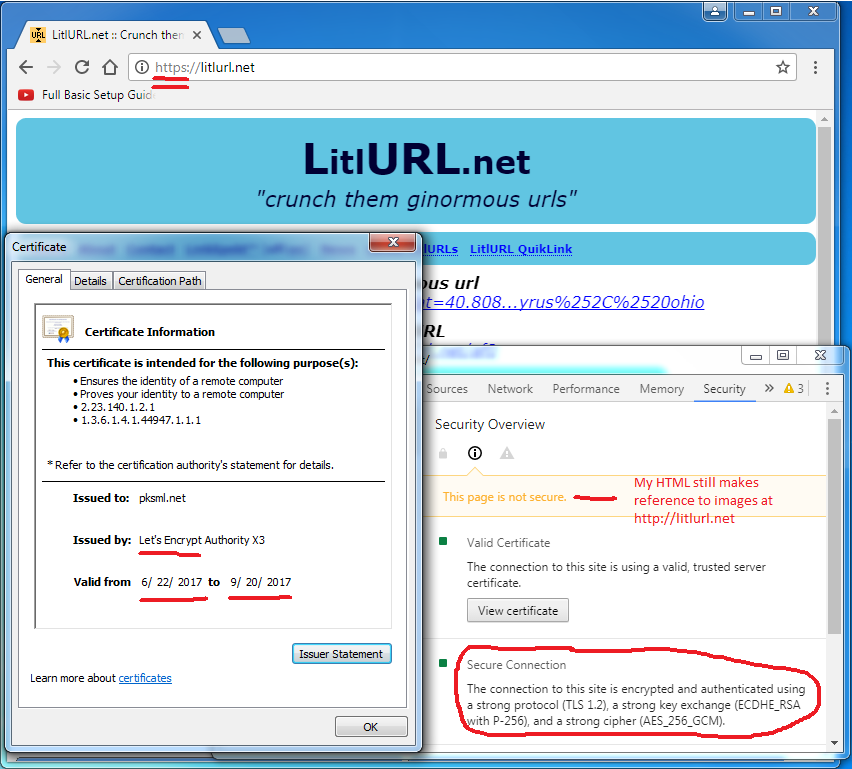
Hey all. Just wanted to let you know
I got Let's Encrypt working with Abyss on Windows! There's a little bit of rig-a-ma-roll to make it happen, but it's not too complicated.
I hope to be posting a better tutorial within a few weeks.
Steps:
- Download Crypt-LE --> http://litlurl.net/Crypt-LE
From the latest release, download le32.zip or le64.zip, depending on your operating system (32/64 bit).
- Extract the zip file to a folder of your choice on your server. It must be a writable directory.
- In your router, forward TCP port 443 to your server (like you've already done for port 80).
- For any domain you want to get an SSL certificate, you must create two folders in the web root directory.
Create a directory called: .well-known
Windows Explorer won't allow you to do this. The workaround is to append a period at the end of the directory name.
For example, type in:
.well-known.
Create a directory inside the .well-known directory named:
acme-challenge
You should be able to navigate to YOUR_WEB_ROOT_FOLDER\.well-known\acme-challenge
Remember: Do this for every domain you want to enable SSL for.
- Now build your argument list for le32.exe (or le64.exe).
Here's some code to get started with:
le32.exe
-key account.key
-email your_email@server.com
-csr demo.go2.rip.csr
-csr-key demo.go2.rip.key
-crt demo.go2.rip.crt
-domains "demo.go2.rip,www.demo.go2.rip"
-generate-missing
-path "c:/web_docs/demo.go2.rip/.well-known/acme-challenge/,c:/web_docs/demo.go2.rip/.well-known/acme-challenge/"
*Change to your email address. This is an optional parameter, but it's for "email for expiration notifications".
*The parameters key, csr, csr-key, and crt define files that will be created in the folder where le32.exe resides.
*Note: Every time you create certificates with this program, use the same account.key file.
*Note: You can specify several domains in the domain parameter. Make sure to put the corresponding path in the path parameter.
The first domain corresponds to the first path and the second domain corresponds to the second path, etc.
(In my example, the root domain and www subdomain have the same root.)
- Take all the arguments after you've altered them (ideally in notepad), and condense them into one line.
Copy and paste into a command prompt (right-click --> Paste) after you've navigated to the folder with le32.exe.
- If you receive the following response on your screen, you've set up the parameters correctly:
2017/08/11 22:08:49 [ ZeroSSL Crypt::LE client v0.24 started. ]
2017/08/11 22:08:49 Loading an account key from account.key
2017/08/11 22:08:49 Loading a CSR from demo.csr
2017/08/11 22:08:51 Registering the account key
2017/08/11 22:08:51 The key is already registered. ID: *******
2017/08/11 22:08:51 Current contact details: *********@gmail.com
2017/08/11 22:08:52 Successfully saved a challenge file 'c:\web_docs\demo.go2.rip\.well-known\acme-challenge/2gsfhMM-KekeTxKp373hgOj93mjh3FT7JufPQBmL4VA' for domain 'demo.go2.rip'
2017/08/11 22:08:52 Successfully saved a challenge file 'c:\web_docs\demo.go2.rip\.well-known\acme-challenge/7KFbbpCFhU5MveHdr60x83yWv3XcfdHYUbhqtsNavKY' for domain 'www.demo.go2.rip'
2017/08/11 22:08:55 Domain verification results for 'demo.go2.rip': success.
2017/08/11 22:08:55 You can now delete the 'c:\web_docs\demo.go2.rip\.well-known\acme-challenge/2gsfhMM-KekeTxKp373hgOj93mjh3FT7JufPQBmL4VA' file.
2017/08/11 22:08:57 Domain verification results for 'www.demo.go2.rip': success.
2017/08/11 22:08:57 You can now delete the 'c:\web_docs\demo.go2.rip\.well-known\acme-challenge/7KFbbpCFhU5MveHdr60x83yWv3XcfdHYUbhqtsNavKY' file.
2017/08/11 22:08:57 Requesting domain certificate.
2017/08/11 22:08:58 Requesting issuer's certificate.
2017/08/11 22:08:58 Saving the full certificate chain to demo.go2.rip.crt.
2017/08/11 22:08:58 ===> NOTE: You have been using the test server for this certificate. To issue a valid trusted certificate add --live option.
2017/08/11 22:08:58 The job is done, enjoy your certificate! For feedback and bug reports contact us at [ https://ZeroSSL.com | https://Do-Know.com ]
- Important note: This certificate is not the one you want to use!!! The second to last log entry tells us what to do next:
To issue a valid trusted certificate add --live option.
- So tack on -live to the argument list (only a single dash as the double dash is for Linux use). Adding -live will alter the .crt file.
The command prompt should now show similar output:
2017/08/11 22:25:47 [ ZeroSSL Crypt::LE client v0.24 started. ]
2017/08/11 22:25:47 Loading an account key from account.key
2017/08/11 22:25:47 Loading a CSR from demo.go2.rip.csr
2017/08/11 22:25:49 Registering the account key
2017/08/11 22:25:49 The key is already registered. ID: ********
2017/08/11 22:25:50 Successfully saved a challenge file 'c:\web_docs\demo.go2.rip\.well-known\acme-challenge/merGFw9B7azpn72vKNNJqMHh4LpS49vduhhU252vaHM' for domain 'demo.go2.rip'
2017/08/11 22:25:50 Successfully saved a challenge file 'c:\web_docs\demo.go2.rip\.well-known\acme-challenge/1VSyuELTt10xdcYKF5l2Dp-XPY2677XaxTy-mhTyoNI' for domain 'www.demo.go2.rip'
2017/08/11 22:25:52 Domain verification results for 'demo.go2.rip': success.
2017/08/11 22:25:52 You can now delete the 'c:\web_docs\demo.go2.rip\.well-known\acme-challenge/merGFw9B7azpn72vKNNJqMHh4LpS49vduhhU252vaHM' file.
2017/08/11 22:25:55 Domain verification results for 'www.demo.go2.rip': success.
2017/08/11 22:25:55 You can now delete the 'c:\web_docs\demo.go2.rip\.well-known\acme-challenge/1VSyuELTt10xdcYKF5l2Dp-XPY2677XaxTy-mhTyoNI' file.
2017/08/11 22:25:55 Requesting domain certificate.
2017/08/11 22:25:55 Requesting issuer's certificate.
2017/08/11 22:25:55 Saving the full certificate chain to demo.go2.rip.crt.
2017/08/11 22:25:55 The job is done, enjoy your certificate! For feedback and bug reports contact us at [ https://ZeroSSL.com | https://Do-Know.com ]
- Now that we have a full-fledged certificate file, we will now import the SSL certificate into Abyss.
Load up the Abyss console in your browser.
- Go to SSL/TLS Certificates.
In the Private Keys table, click Add.
- Create a name for this private key.
Let's call it 'Abyss-LE' for this example.
Set action to 'Import'.
Under key contents, insert the contents of demo.go2.rip.key file (the one created with the -csr-key parameter).
Click OK.
- Under Certificates, click Add.
Give it a name. Again, for example, let's use 'Abyss-LE'.
Choose your 'Abyss-LE' private key.
Set 'Type' to 'Signed by a Certification Authority (CA)'.
- Under Main Certificate, open up demo.go2.rip.crt (the file specified in the -crt parameter).
You'll notice there are two certificates here. Select only the first one and paste it into Main Certificate.
The second certificate should be pasted in 'Intermediate Certificate'.
The CA Root Certificate can be blank.
Click OK.
EDIT: You can just copy the ENTIRE file and dump it in the Main Certificate textbox. The result is the same and this way is easier :)
- Now navigate to your host and click 'General'.
Under Protocol, select HTTP+HTTPS.
Select the certificate you created.
Click OK.
(If you specified other domains when you created your SSL certificate, repeat this same procedure and use the same certificate for those hosts.)
- Restart Abyss. Now you're serving HTTP & HTTPS. Congrats!
Note: I made some minor edits with the parameters when running the LE32.exe file (forward/back slashes and trailing slashes) so that the program will function correctly.